Saturday, October 10, 2009
Thursday, July 30, 2009
Form 2: Exercise (Cyber Law)
1. State 3 reason why we need cyber law
2. State 4 cyber law act in Malaysia
3. Explain briefly 2 of the cyber law act in Malaysia
2. State 4 cyber law act in Malaysia
3. Explain briefly 2 of the cyber law act in Malaysia

Thursday, July 16, 2009
Form 2: Cyber Law
What is Cyber Law?
Cyber law refers to any laws relating to protecting the Internet and other online communication technologies.
The Cyber Law Acts In Malaysia
The Malaysian Government has already passed several cyber laws to control and reduce Internet abuse.
These cyber laws include:
• Digital Signature Act 1997
• Computer Crimes Act 1997
• Telemedicine Act 1997
• Communications and Multimedia Act 1998
Beside these cyber laws, there are three other cyber laws being drafted.
• Private Data Protection Bill
• Electronic Government Activities Bill
• Electronic Transactions Bill
Digital Signature Act 1997
Digital Signature is an identity verification standard that uses encryption techniques to protect against e-mail forgery. The encrypted code consists of the user’s name and a hash of all the parts of the message.
By attaching the digital signature, one can ensure that nobody can eavesdrop, intercept or temper with transmitted data.
Computer Crimes Act 1997
Gives protection against the misuse of computers and computer criminal activities such as unauthorised use of programmes, illegal transmission of data or messages over computers, hacking and cracking of computer systems and networks.
Users can protect their rights to privacy and build trust in the computer system.
The government can have control at a certain level over cyberspace to reduce cyber crime activities.
Telemedicine Act 1997
The Telemedicine Act 1997 ensures that only qualified medical practitioners can practice telemedicine and that their patient's rights and interests are protected.
This act provides future development and delivery of healthcare in Malaysia.
Communications And Multimedia Act 1998
The implementation of Communication and Telecommunication Act 1998 ensures that information is secure, the network is reliable and affordable all over Malaysia.
Cyber law refers to any laws relating to protecting the Internet and other online communication technologies.
The Cyber Law Acts In Malaysia
The Malaysian Government has already passed several cyber laws to control and reduce Internet abuse.
These cyber laws include:
• Digital Signature Act 1997
• Computer Crimes Act 1997
• Telemedicine Act 1997
• Communications and Multimedia Act 1998
Beside these cyber laws, there are three other cyber laws being drafted.
• Private Data Protection Bill
• Electronic Government Activities Bill
• Electronic Transactions Bill
Digital Signature Act 1997
Digital Signature is an identity verification standard that uses encryption techniques to protect against e-mail forgery. The encrypted code consists of the user’s name and a hash of all the parts of the message.
By attaching the digital signature, one can ensure that nobody can eavesdrop, intercept or temper with transmitted data.
Computer Crimes Act 1997
Gives protection against the misuse of computers and computer criminal activities such as unauthorised use of programmes, illegal transmission of data or messages over computers, hacking and cracking of computer systems and networks.
Users can protect their rights to privacy and build trust in the computer system.
The government can have control at a certain level over cyberspace to reduce cyber crime activities.
Telemedicine Act 1997
The Telemedicine Act 1997 ensures that only qualified medical practitioners can practice telemedicine and that their patient's rights and interests are protected.
This act provides future development and delivery of healthcare in Malaysia.
Communications And Multimedia Act 1998
The implementation of Communication and Telecommunication Act 1998 ensures that information is secure, the network is reliable and affordable all over Malaysia.

Monday, July 13, 2009
Form 2 : Internet Communication
1. Various forms of communications on the Internet
• E-mailing
• Chatting
• Conferencing (audio and video)
• Net Meeting
• Newsgroup
• Forum
E-mail, short for electronic mail is the transmission of messages and files via a computer network.
A user utilises an email programme to create, send, receive, forward, store, print and delete email messages.
Some emails are web-based emails like Yahoo Mail, Gmail and Hotmail.
The Internet Relay Chat (IRC) is a system for chatting that involves a set of rules conventions and client/server software.
A chat is a real-time typed conversation that takes place on a computer. A chat room is a location on an Internet server that permits users to chat with others anywhere in the world.
Anyone in the chat room can participate in the conversation, it is usually specific to a particular topic.
Audio Conferencing (also known as ATC – Audio Tele-Conference)
When two or more people who are in different parts of the world can talk to each other at the same time through the Internet without the use of phone.
• Video Conferencing (also known as a video teleconference)
When two or more people who are in different parts of the world to talk and see each other on the screen using video capture used in businesses and meeting.
• Web Conferencing is used to conduct live, businesses, meetings and presentations over the Internet, where the people may be in different parts of the world.
NetMeeting is a web conferencing service where the user needs to have a high speed Internet connection for on-line collaboration.
Examples:
1. Chat Window
Type and send messages within a Chat Window
2. Whiteboard
Draw out a process or brainstorm ideas on a board.
3. File Transfer
Send or receive files within a meeting.
4. Application Sharing
Select an application on your computer and let others
explain how to use it.
5. Video Conferencing
Hold a video conference over the internet.
6. Audio conferencing
Hold an audio conversation over the internet without the use of phones
Newsgroup
It is usually a discussion group about a particular subject consisting of notes, written to a central Internet site and redistributed through Usenet. Newsgroups are similar to discussion forums on the World Wide Web.
Forum
An Internet forum is a web application for holding discussions and posting user generated content. Internet forums are also commonly referred to as web forums, message boards, discussion boards, (electronic) discussion groups, discussion forums, bulletin boards, fora (the Latin plural) or simply forums.
2. Peripherals used for communications
• Web camera
• Microphone
• Earphone
• E-mailing
• Chatting
• Conferencing (audio and video)
• Net Meeting
• Newsgroup
• Forum
E-mail, short for electronic mail is the transmission of messages and files via a computer network.
A user utilises an email programme to create, send, receive, forward, store, print and delete email messages.
Some emails are web-based emails like Yahoo Mail, Gmail and Hotmail.
The Internet Relay Chat (IRC) is a system for chatting that involves a set of rules conventions and client/server software.
A chat is a real-time typed conversation that takes place on a computer. A chat room is a location on an Internet server that permits users to chat with others anywhere in the world.
Anyone in the chat room can participate in the conversation, it is usually specific to a particular topic.
Audio Conferencing (also known as ATC – Audio Tele-Conference)
When two or more people who are in different parts of the world can talk to each other at the same time through the Internet without the use of phone.
• Video Conferencing (also known as a video teleconference)
When two or more people who are in different parts of the world to talk and see each other on the screen using video capture used in businesses and meeting.
• Web Conferencing is used to conduct live, businesses, meetings and presentations over the Internet, where the people may be in different parts of the world.
NetMeeting is a web conferencing service where the user needs to have a high speed Internet connection for on-line collaboration.
Examples:
1. Chat Window
Type and send messages within a Chat Window
2. Whiteboard
Draw out a process or brainstorm ideas on a board.
3. File Transfer
Send or receive files within a meeting.
4. Application Sharing
Select an application on your computer and let others
explain how to use it.
5. Video Conferencing
Hold a video conference over the internet.
6. Audio conferencing
Hold an audio conversation over the internet without the use of phones
Newsgroup
It is usually a discussion group about a particular subject consisting of notes, written to a central Internet site and redistributed through Usenet. Newsgroups are similar to discussion forums on the World Wide Web.
Forum
An Internet forum is a web application for holding discussions and posting user generated content. Internet forums are also commonly referred to as web forums, message boards, discussion boards, (electronic) discussion groups, discussion forums, bulletin boards, fora (the Latin plural) or simply forums.
2. Peripherals used for communications
• Web camera
• Microphone
• Earphone
Sunday, July 5, 2009
Form 4: Exercise ( NETWORK )
1. Define computer network
2. Define communication
3. State the importance of computer network and communication
4. Define types of computer networks:
2. Define communication
3. State the importance of computer network and communication
4. Define types of computer networks:
- LAN
- MAN
- WAN
5. Differentiate between the three type of networks
6. Define two types of network architecture:
- Client/server
- peer-to-peer
7. State three type of network topology
8. Define the each network topology
9. State the differentiate between three type of network topology
Wednesday, May 13, 2009
Form2 : 2.4 Netiquette
2.4 Netiquette
2.4.1 Explain the meaning of Netiquette.
Netiquette is etiquette on the Internet. Since the Internet changes rapidly, its netiquette does too, but it's still usually based on the Golden Rule. The need for a sense of netiquette arises mostly when sending or distributing e-mail, posting on Usenet groups, or chatting. To some extent, the practice of netiquette depends on understanding how e-mail, the Usenet, chatting, or other aspects of the Internet actually work or are practiced.
2.4.2 List out the Dos and Don’ts while communicating online.
a) Do unto others, as you'd have others do unto you.
Be polite and courteous at all times. Remember that you're not communicating with a computer screen, but with a human being who has thoughts and feelings just like you. So, always think of the person on the receiving end of your messages.
b) Do not TYPE ALL IN CAPITAL LETTERS for emphasis.
IT LOOKS LIKE YOU ARE SHOUTING. If you need to emphasize a word, use asterisks, like *this* or lines, like _this_.
c) Remember that the written word is hard to interpret.
When you speak to someone, that person can hear the tone of your voice. If they can see you, they can take visual clues from your face and body to better
understand your meaning. All of this is lost in text, and sometimes responses can come across as mean or rude, even when you did not intend them this way. This is the reason some people use emoticons (visual clues) in their e-mails, it saves a lot of confusion.
d) Be careful not to use rude or bad language online.
Many providers will terminate your account.
e) Don't break any laws.
When you're on the net, follow the same rules of behaviour that you would in real life. Remember, if it is against the law in the real world, it is against the law in cyberspace.
f) Be universal.
Other users have different Web browsers, different online services, different e-mail programs etc. So don't, for example, send out e-mail with text formatting -- boldface, italics, indentations, etc. -- because many other programs will not be able to read the formatting and the recipients will receive your e-mail filled with muddled codes.
g) Be brief whenever possible.
No one wants to read through a lot of unnecessary information. If you are replying to an e-mail, try editing out unimportant information and anything that is repeated.
h) Always identify yourself.
If your parents require you to use an online name instead of your real one, that's fine - use your online name consistently. Never send e-mail without including your name at the bottom of the e-mail. Similarly, don't post forum messages without identifying yourself, this is seen as rude.
i) Make a good impression.
Remember that the written word is the only way you can represent yourself online, so spelling and grammar count. If you are going to be writing a large
amount of text for other people to see, make sure you break it up using paragraphs, it will make it easier on the eye for those that will read it.
j) Be patient with newcomers.
Once you have become an Internet expert, it is easy to forget that you started out as a newbie too. Learning the rules of cyberspace is much like learning a new language; it takes practice, and includes making mistakes. So if you come across someone else's mistakes on the net, don't put them down, just politely point them in the right direction for guidance (send them a copy of these rules to get them started on their way!).
2.4.3 Adhere to netiquette in various forms of online communications.
• Listing netiquette items:
o Avoid spamming
• Spam is a term used on the Internet to refer to unsolicited e-mail and Usenet postings. These messages are usually intended to entice the recipient into buying a product or service of some kind or into participating in a get-rich-quick scheme.
o Avoid Flaming
• Abusive or insulting massages sent using the internet.
• Do not send rude or offensive e-mails or postings. It's bad manners and can get seriously out of hand (flame wars). So don't flame others and if you are flamed, do not respond: you will never win. If you are flamed in a forum or chat room, or if you receive hateful e-mail, let your parents or teachers know.
o Use emoticons wisely
Basic Emoticons
:) or :-)
Happy
:-/ or :\
Confused
:( or :-(
Sad
:Q or :-Q
Questioning
:] or :-]
Really Happy
:S or :-S
At a loss for words
:[ or :-[
Really Sad
:@ or :-@
Shock or screaming
:D or :-D
Laughing
:O or :-O
"Uh Oh" or "oh no"
2.4.1 Explain the meaning of Netiquette.
Netiquette is etiquette on the Internet. Since the Internet changes rapidly, its netiquette does too, but it's still usually based on the Golden Rule. The need for a sense of netiquette arises mostly when sending or distributing e-mail, posting on Usenet groups, or chatting. To some extent, the practice of netiquette depends on understanding how e-mail, the Usenet, chatting, or other aspects of the Internet actually work or are practiced.
2.4.2 List out the Dos and Don’ts while communicating online.
a) Do unto others, as you'd have others do unto you.
Be polite and courteous at all times. Remember that you're not communicating with a computer screen, but with a human being who has thoughts and feelings just like you. So, always think of the person on the receiving end of your messages.
b) Do not TYPE ALL IN CAPITAL LETTERS for emphasis.
IT LOOKS LIKE YOU ARE SHOUTING. If you need to emphasize a word, use asterisks, like *this* or lines, like _this_.
c) Remember that the written word is hard to interpret.
When you speak to someone, that person can hear the tone of your voice. If they can see you, they can take visual clues from your face and body to better
understand your meaning. All of this is lost in text, and sometimes responses can come across as mean or rude, even when you did not intend them this way. This is the reason some people use emoticons (visual clues) in their e-mails, it saves a lot of confusion.
d) Be careful not to use rude or bad language online.
Many providers will terminate your account.
e) Don't break any laws.
When you're on the net, follow the same rules of behaviour that you would in real life. Remember, if it is against the law in the real world, it is against the law in cyberspace.
f) Be universal.
Other users have different Web browsers, different online services, different e-mail programs etc. So don't, for example, send out e-mail with text formatting -- boldface, italics, indentations, etc. -- because many other programs will not be able to read the formatting and the recipients will receive your e-mail filled with muddled codes.
g) Be brief whenever possible.
No one wants to read through a lot of unnecessary information. If you are replying to an e-mail, try editing out unimportant information and anything that is repeated.
h) Always identify yourself.
If your parents require you to use an online name instead of your real one, that's fine - use your online name consistently. Never send e-mail without including your name at the bottom of the e-mail. Similarly, don't post forum messages without identifying yourself, this is seen as rude.
i) Make a good impression.
Remember that the written word is the only way you can represent yourself online, so spelling and grammar count. If you are going to be writing a large
amount of text for other people to see, make sure you break it up using paragraphs, it will make it easier on the eye for those that will read it.
j) Be patient with newcomers.
Once you have become an Internet expert, it is easy to forget that you started out as a newbie too. Learning the rules of cyberspace is much like learning a new language; it takes practice, and includes making mistakes. So if you come across someone else's mistakes on the net, don't put them down, just politely point them in the right direction for guidance (send them a copy of these rules to get them started on their way!).
2.4.3 Adhere to netiquette in various forms of online communications.
• Listing netiquette items:
o Avoid spamming
• Spam is a term used on the Internet to refer to unsolicited e-mail and Usenet postings. These messages are usually intended to entice the recipient into buying a product or service of some kind or into participating in a get-rich-quick scheme.
o Avoid Flaming
• Abusive or insulting massages sent using the internet.
• Do not send rude or offensive e-mails or postings. It's bad manners and can get seriously out of hand (flame wars). So don't flame others and if you are flamed, do not respond: you will never win. If you are flamed in a forum or chat room, or if you receive hateful e-mail, let your parents or teachers know.
o Use emoticons wisely
Basic Emoticons
:) or :-)
Happy
:-/ or :\
Confused
:( or :-(
Sad
:Q or :-Q
Questioning
:] or :-]
Really Happy
:S or :-S
At a loss for words
:[ or :-[
Really Sad
:@ or :-@
Shock or screaming
:D or :-D
Laughing
:O or :-O
"Uh Oh" or "oh no"
Wednesday, May 6, 2009
Form 2: Internet Application
The World Wide Web (commonly shortened to the Web) is a system of interlinked, hypertext documents accessed via the Internet. With a web browser, a user views web pages that may contain text, images, videos, and other multimedia and navigates between them using hyperlinks.
>>>> Hypertext is text, displayed on a computer, with references (hyperlinks) to other text that the reader can immediately follow, usually by a mouse click or keypress sequence
These pages are written in Hypertext Markup Language (HTML).
Every website has an address or Uniform Resource Locator (URL). The URL is formed by the protocol, domain, directory and the document name.
The World Wide Web was created in 1989 by Sir Tim Berners-Lee, working at CERN in Geneva, Switzerland.
Web Browser
A web browser is a software application that enables a user to display and interact with text, images, videos, music and other information typically located on a Web page at a website on the World Wide Web or a local area network.
Some of the Web browsers are:
• Internet Explorer
• Mozilla Firefox
• Safari
• Opera
Some of the search engine:
- Yahoo
- Google
- AltaVista
- Hot Bot
The function of search engine:
- To find out information ( image, text, video, music ect)
>>>> Hypertext is text, displayed on a computer, with references (hyperlinks) to other text that the reader can immediately follow, usually by a mouse click or keypress sequence
These pages are written in Hypertext Markup Language (HTML).
Every website has an address or Uniform Resource Locator (URL). The URL is formed by the protocol, domain, directory and the document name.
The World Wide Web was created in 1989 by Sir Tim Berners-Lee, working at CERN in Geneva, Switzerland.
Web Browser
A web browser is a software application that enables a user to display and interact with text, images, videos, music and other information typically located on a Web page at a website on the World Wide Web or a local area network.
Some of the Web browsers are:
• Internet Explorer
• Mozilla Firefox
• Safari
• Opera
Some of the search engine:
- Yahoo
- AltaVista
- Hot Bot
The function of search engine:
- To find out information ( image, text, video, music ect)
Wednesday, April 29, 2009
Form 2: Internet
THE INTERNET
The internet or the Net is the world’s largest computer network which connects millions of computer all over the world. Many organizations including private as well as government agencies, educational institutions and individuals are connected to the Internet.
More than one billion people around the world use the internet daily for a variety of reasons, including the following:
• Communicate with and meet other people
• Access a wealth of information, news, and research findings
• Shop for goods and services
• Bank and invest
• Take a class
• Access sources of entertainment and leisure, such as online games, videos, books and magazines
• Share information
Advantages of the Internet
1. Data and information rich, including a range of media.
2. Anyone can publish online (tripod.com and other hosting sites)
3. Learners can become researchers because of easier access to data
4. Search engines that are fast and powerful
5. Easy to use.
6. Smaller, faster, cheaper all the time
Disadvantages of the Internet
1. Information overload.
2. No librarians for quality control(with some exceptions, like Kids Click! And other sites for children).
3. Need for quality control in the data that student find and use.
4. Search engine that show result base on who pays the most.
5. Not enough training for effective use.
6. Push to upgrade constantly.
INTERNET REQUIREMENTS
Basic requirements needed to access the internet :
1. Network Interface Card ( NIC )
A network interface card is a computer circuit board that is installed in a computer so that it can be connected to a network.

2. Access Account
New subscriber needs to subscribe for an account from the service provider (ISP). There are several listed internet service providers in Malaysia such as JARING, TELEKOM MALAYSIA - TMnet, MAXIS - maxis.net and TIME.COM - time.net.
There are two ways of accessing the internet:
a. Direct access:
User computers are directly connected to the internet through a local network server
b. Dial-up:
Accessing the internet is made by making a call through the telephone line to the ISP
3. Wireless Network Interface Card
Is a network card which connects to a radio-based computer network. It uses an antenna to communicate through microwave. A WNIC can operate in two modes known as infrastructure mode and ad hoc mode. In an infrastructure mode network the WNIC needs an access point while an ad hoc mode network the WNIC does not require an access point.
4. Modem ( internal and external )
It is a device that enables a computer transmits data over telephone or cable lines. Computer information is store digitally, whereas information transmitted over telephone lines is transmitted in the form analog waves. A modem converts between these two forms. There are two types of modem, external and internal modem.
External modem can be attached to any computer that has an RS-232 port. An internal modem is an expansion board that can be inserted into vacant expansion slot in a computer.


5. Hub / Switch
A hub is a device acting as the cable center of a network that uses to connect segments of LAN and has either 8 or 16 port. Hub broadcasts the data that it receives from one port to all of its port.
A switch can also connect multiple communication lines and it can receive packets from different protocol. Switch is more intelligent than a hub as it will on only deliver the data to the particular port. This actually helps to make the network significantly faster. It filters and forward packers between a LAN segments.

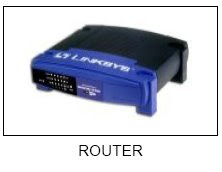
6. Router
A router is attached to two or more networks an forwards Packets form one network to another. It acts as a junction between two or more networks to butter and transfer data packets among them.
7. Wireless Access Point
Wireless access point or AP is a device that connects wireless communication devices together to form a wireless network. It is usually connects to a wired network and can relay data between wireless and wired devices.

Monday, April 20, 2009
Form4: Exercise Software2
1. State the function of OS
2. State thedifference interface of OS
3. State the types of application software
4. Describe the use of application software
5. Give 3 an example of utility programmes and state the usage of each example
2. State thedifference interface of OS
3. State the types of application software
4. Describe the use of application software
5. Give 3 an example of utility programmes and state the usage of each example
Wednesday, April 15, 2009
Form 2: Exercise Network
1. What is computer network?
2. State 3 benefit of computer network
3. State the network devices
4. List the 3 type of computer network
- Describe the LAN network
- Describe the MAN network
- Describe the WAN network
5. Describe the Star topology and give 2 advantage and disadvantage of star topology
6. Describe the Ring topology and give 2 advantage and disadvantage of ring topology
7. Describe the Bus topology and give 2 advantage and disadvantage of bus topology
2. State 3 benefit of computer network
3. State the network devices
4. List the 3 type of computer network
- Describe the LAN network
- Describe the MAN network
- Describe the WAN network
5. Describe the Star topology and give 2 advantage and disadvantage of star topology
6. Describe the Ring topology and give 2 advantage and disadvantage of ring topology
7. Describe the Bus topology and give 2 advantage and disadvantage of bus topology
Monday, April 13, 2009
Form4: Exercise Software
1. State the definition of software
2. State the categories of software
3. State the differencess between System softwareand application software
2. State the categories of software
3. State the differencess between System softwareand application software
Wednesday, April 8, 2009
form 2: Network Topology
1. Star topology
A star topology consists of a central host which acts as the centre, and all nodes connect to the host. A star topology is also known as star network.A star network must have a host which acts as the centre - can be a server, hub or router. In a star network, every node will not connect to the neighbouring nodes.Every node must connect to the host in order to communicate.The host will control the flow of communication in the network.
Advantages of star topology :
a) It is easy to implement. You only add nodes to the host.If one of the nodes fails, the star network can still function as long as the host is working.
b) The failure of a node does not affect the entire LAN. If the host fails, the network will fail to function.
c) There are no disruptions to the network when connecting or removing devices.
d) The network can be extended by adding new devices to the host or nodes.
e) Troubleshooting is easy when the host fails. Simply repair or replace the host and the network will continue to function.
Disadvantages of star topology :
a) If the host fails, the entire LAN will be affected.
b) Network speed decreases when the number of nodes increases.
c) Troubleshooting is difficult when one of the nodes fails.
d) A host must be installed to control the network.
2. Ring topology
A ring topology consists of all computers and other devices that are connected in a loop. Ring topology is also known as a ring network.
Advantages of ring topology :
a) Troubleshooting is easy when one of the nodes fails.
b) Repair or remove the failing nodes and the network will continue to function.
Disadvantages of ring topology :
a) Implementation is difficult. Network administrator has to terminate the entire network to install a new node between existing nodes.
b) A failing node will affect the entire LAN. If one of the nodes fails, the network will fail to function.
c) Network speed decreases when the number of nodes increases.
3. Bus topology
A Bus networks are very common in Local Area Networks (LAN). A bus network must have a common backbone (the central cable) to connect all devices. A bus topology is also known as a bus network.
Advantages of bus topology :
1. Easy implementation. New devices can be added to the backbone or to the existing nodes.
2. Failure of a node doesn't affect the entire LAN.
3. No disruptions to the network when connecting or removing devices.
4. Network can easily be extended, by adding new devices to the backbone or existing nodes.
Disadvantages of bus topology :
1. If the backbone fails, the entire bus network will be affected.
2. Network speed decreases when the number of nodes increases.
3. Troubleshooting is difficult when one of the nodes fails.
A star topology consists of a central host which acts as the centre, and all nodes connect to the host. A star topology is also known as star network.A star network must have a host which acts as the centre - can be a server, hub or router. In a star network, every node will not connect to the neighbouring nodes.Every node must connect to the host in order to communicate.The host will control the flow of communication in the network.
Advantages of star topology :
a) It is easy to implement. You only add nodes to the host.If one of the nodes fails, the star network can still function as long as the host is working.
b) The failure of a node does not affect the entire LAN. If the host fails, the network will fail to function.
c) There are no disruptions to the network when connecting or removing devices.
d) The network can be extended by adding new devices to the host or nodes.
e) Troubleshooting is easy when the host fails. Simply repair or replace the host and the network will continue to function.
Disadvantages of star topology :
a) If the host fails, the entire LAN will be affected.
b) Network speed decreases when the number of nodes increases.
c) Troubleshooting is difficult when one of the nodes fails.
d) A host must be installed to control the network.
2. Ring topology
A ring topology consists of all computers and other devices that are connected in a loop. Ring topology is also known as a ring network.
Advantages of ring topology :
a) Troubleshooting is easy when one of the nodes fails.
b) Repair or remove the failing nodes and the network will continue to function.
Disadvantages of ring topology :
a) Implementation is difficult. Network administrator has to terminate the entire network to install a new node between existing nodes.
b) A failing node will affect the entire LAN. If one of the nodes fails, the network will fail to function.
c) Network speed decreases when the number of nodes increases.
3. Bus topology
A Bus networks are very common in Local Area Networks (LAN). A bus network must have a common backbone (the central cable) to connect all devices. A bus topology is also known as a bus network.
Advantages of bus topology :
1. Easy implementation. New devices can be added to the backbone or to the existing nodes.
2. Failure of a node doesn't affect the entire LAN.
3. No disruptions to the network when connecting or removing devices.
4. Network can easily be extended, by adding new devices to the backbone or existing nodes.
Disadvantages of bus topology :
1. If the backbone fails, the entire bus network will be affected.
2. Network speed decreases when the number of nodes increases.
3. Troubleshooting is difficult when one of the nodes fails.
Sunday, April 5, 2009
Form4 Exercise: Area 2 (COMPUTER SYSTEM)
Topic: Overview Computer System
1. Define what is computer systems.
2. State the meaningof input, process, output and storage
3. Draw the information processing cycle ( block diagram )
4. Describe the information processing cycle which include input, process, output and storage
Topic: Data Representation
1. State the relationship of data representation: bit, byte and character
Topic: Introduction to Binary Coding
1. Explain 3 the function of ASCII code
Topic: Data Measurement
1. State the units of data measurement:
- Bit -Byte - Kilobyte(KB) -Megabyte(MB) -Gigabyte(GB) -Terabyte(TB)
Topic: Clock Speed Measurement
1. State the unit of clock Speed Measurement
- Megahertz (MHz)
- Gigahertz (GHz)
Topic: Hardware
A. Input Devices
1. List 2 input devices used for ecah category: text, graphic, audio and video
B. Output Devices
1. List 2 output devices used for text, graphic audio and video
C. Motherboard
1. What is CPU?
2. What is expansion slots
3. What is expansion cards
4. What is RAM slots
5. State the usage of each port and connector
1) SERIAL PORT
2) PARALLEL PORT
3) USB PORT
4) FireWire PORT
5) SPECIAL PURPOSE PORTS:
- MIDI port
- SCSI port
- IrDA port
6. Describe the subcomponent of CPU and Explain how data is processed by CPU
D. Storage
1. State the two category of storage devices
2. What the meaning of primary storage
3. What the meaning of secondary storage
4. State 3 differencess of ROM and RAM
4. State the type of secondary storage and give an examlpe of each type.
1. Define what is computer systems.
2. State the meaningof input, process, output and storage
3. Draw the information processing cycle ( block diagram )
4. Describe the information processing cycle which include input, process, output and storage
Topic: Data Representation
1. State the relationship of data representation: bit, byte and character
Topic: Introduction to Binary Coding
1. Explain 3 the function of ASCII code
Topic: Data Measurement
1. State the units of data measurement:
- Bit -Byte - Kilobyte(KB) -Megabyte(MB) -Gigabyte(GB) -Terabyte(TB)
Topic: Clock Speed Measurement
1. State the unit of clock Speed Measurement
- Megahertz (MHz)
- Gigahertz (GHz)
Topic: Hardware
A. Input Devices
1. List 2 input devices used for ecah category: text, graphic, audio and video
B. Output Devices
1. List 2 output devices used for text, graphic audio and video
C. Motherboard
1. What is CPU?
2. What is expansion slots
3. What is expansion cards
4. What is RAM slots
5. State the usage of each port and connector
1) SERIAL PORT
2) PARALLEL PORT
3) USB PORT
4) FireWire PORT
5) SPECIAL PURPOSE PORTS:
- MIDI port
- SCSI port
- IrDA port
6. Describe the subcomponent of CPU and Explain how data is processed by CPU
D. Storage
1. State the two category of storage devices
2. What the meaning of primary storage
3. What the meaning of secondary storage
4. State 3 differencess of ROM and RAM
4. State the type of secondary storage and give an examlpe of each type.
Wednesday, April 1, 2009
form 2: Network

COMPUTER NETWORKS :
A computer network is a system of interconnected computers and peripheral devices. For example, it may connect computers, printers, scanners and cameras.
Using hardware and software, these interconnected computing devices can communicate with each other through defined rules of data communications. In a network, computers can exchange and share information and resources.
A computer network may operate on wired connections or wireless connections.When two or more networks are linked or connected and are able to communicate with one another using suitable hardware and software, it is called an internetwork.
BENEFITS OF COMPUTER NETWORKS :
1. Computer network can share devices
2. Can share data and information
3. Can share internet access
4. Speed. Using a network is faster way for sharing and transferring files.
COMPUTER NETWORKS DEVICES :
1. Switch

2. Router

3. NIC (Network Interface Card)

4. Hub

5. UTP cable (wired)

6. Wireless

COMPUTER NETWORKS :
1. LAN

2. MAN

3. WAN

DIFFERENCE OF COMPUTER NETWORKS :

Wednesday, March 25, 2009
Form 4: 2.1.2.1 -State the relation of data representation : bit, byte and character
DATA REPRESENTATION
BINARY DIGIT
Computers recognize only two discrete states: on and off. These states can be represented by two digits, 0 and 1. Each 0 or 1 is called a bit in the binary system.
Bit is the smallest unit of data a computer can process. Bit is a short for binary digit. The binary system has a base of 2 with the two digits (0 and 1). Combinations of 0s and 1s represent larger numbers.
BIT
A bit is the smallest unit of data that the computer can process. Bit is a short for binary digit. A bit is represented by the numbers 1 and 0. These numbers represent the binary system. They correspond to the states of on and off, true and false, or yes and no.
All digital data use the binary system to process the information. This information include letters, digits or special character.

 For example, the capital letter F is represented by the binary code 01000110 that can be understood by the computer system. Eight bits grouped together as a unit are called a byte. A byte represents a single character in the
computer.
CHARACTER CODES
There are three character codes to represent characters which are ASCII, EBCDIC and Unicode. Each byte contains eight bits. A byte provides enough
different combination of 0s and 1s to represent 256 characters.
The combinations of 0s and 1s are defined by patterns. These patterns are called coding scheme. The 256-character capability of ASCII and EBCDIC is too small to handle the characters that are used by other languages such as
Arabic, Japanese and Chinese.
The Unicode coding scheme is designed to solve this problem. It uses two bytes (16 bits) to represent one character. Unicode will have more than 65,000 different characters. This can cover all the world’s languages.


MEGAHERTZ (MHz)
Mega is a prefix that stands for million. Thus, megahertz (MHz) equals to one million cycles of the system clock. A computer that operates at 933 MHz (megahertz) has 933 million clock cycles in one second. 
GIGAHERTZ (GHz)
Giga is a prefix that stands for billion.Gigahertz (GHz) equals to one billion cycles of the system clock.In relation with megahertz,1.0 GHz is equivalent to 1000 MHz.
For example, a microprocessor that runs at 200 GHz executes 200 billion cycles per second. This is what they are talking about if they say a computer is a 2.4 GHz machine. Its clock rate is 2.4 billion cycles per second.
GHz is most often used as a measurement of a PC processor chip and power, with bigger numbers meaning more speed and higher price.  PROCESSING SPEED
The system clock is one of the major factors that influence the computer speed. A CPU with a higher clock speed can process more instructions per second than a CPU with a lower clock speed. For example, a 1 GHz CPU is faster than a CPU operating at 800 MHz. The speed of the system clock affects only the CPU. It has no effect on peripherals such as a printer or disk drive.
MICROPROCESSOR SPEED
One way of comparing the performance of personal computers is by comparing their microprocessor speeds. Microprocessor speeds are determined by their clock speed and are usually expressed in gigahertz (GHz), billion of machine cycles per second.
For example, a personal computer that is listed at 2.2 GHz has a processor capable of handling 2.2 billion machine cycles per second. A top speed personal computer can be much faster, with newer ones exceeding 3.0 GHz.
Direct comparison of clock is meaningful between identical microprocessor.
Thus, it is accurate to say that a Pentium 4 running at 2.4 GHz is approximately one-third faster than a Pentium 4 running at 1.8 GHz.
SPEED AND PATH
The combination of speed and number of paths determines the total processing speed or channel bandwidth. This is because different processors
often use different architectures. For this reason, a 1.4 GHz Pentium 4 performs better than a 1.4 GHz Pentium 3, but it is not as fast as a 1.4 GHz Power PC G4 processor.
BINARY DIGIT
Computers recognize only two discrete states: on and off. These states can be represented by two digits, 0 and 1. Each 0 or 1 is called a bit in the binary system.
Bit is the smallest unit of data a computer can process. Bit is a short for binary digit. The binary system has a base of 2 with the two digits (0 and 1). Combinations of 0s and 1s represent larger numbers.
BIT
A bit is the smallest unit of data that the computer can process. Bit is a short for binary digit. A bit is represented by the numbers 1 and 0. These numbers represent the binary system. They correspond to the states of on and off, true and false, or yes and no.
All digital data use the binary system to process the information. This information include letters, digits or special character.
BYTE
Byte is a unit of information built from bits. One byte is equals to 8 bits. Eight bits that are grouped together as a unit. A byte provides enough different combinations of 0s and 1s to represent 256 individual characters.
One byte represents a single character such as the number 3, letter b
or a $ symbol. Bits and bytes are the basis for representing all meaningful information and programs on computers.
CHARACTER
8 bits = 1 byte
One byte represents one character such as A, 7, 9 and +.Eight bits that are grouped together as a unit. A byte provides enough different combinations of 0s and 1s to represent 256 individual characters.
For example, the capital letter F is represented by the binary code 01000110 that can be understood by the computer system. Eight bits grouped together as a unit are called a byte. A byte represents a single character in thecomputer.
CHARACTER CODES
There are three character codes to represent characters which are ASCII, EBCDIC and Unicode. Each byte contains eight bits. A byte provides enough
different combination of 0s and 1s to represent 256 characters.
The combinations of 0s and 1s are defined by patterns. These patterns are called coding scheme. The 256-character capability of ASCII and EBCDIC is too small to handle the characters that are used by other languages such as
Arabic, Japanese and Chinese.
The Unicode coding scheme is designed to solve this problem. It uses two bytes (16 bits) to represent one character. Unicode will have more than 65,000 different characters. This can cover all the world’s languages.

INTRODUCTION TO BINARY CODING
COMMUNICATION CODES
Smoke signals, Morse code and semaphore are some of the communication codes used by people in the early days. In the information digital era, people send information via electronic devices such as through the computers.
Computers use binary codes to communicate. One of the widely used binary codes is the American Standard Code for Information Interchange (ASCII).
HISTORY OF CHARACTER CODES
Before people used binary codes such as ASCII to communicate via computers, character codes were widely used as a medium of communication. Let’s look at some of the character codes used prior to the use of ASCII.
2.1.3.1 - Explain the function of ASCII code.
 7 bits allow the computer to encode a total of 128 characters for the numbers 0-9, uppercase and lowercase letters A-Z and a few punctuation symbols. However this 128 bit code only suitable for english language speaking users.
IBM and Apple expanded the amount of space reserved for the character codes to 8-bits, equivalent to 1 byte.
FUNCTIONS OF ASCII
ASCII was established to achieve compatibility between various types of data processing equipment making it possible for the components to communicate with each other successfully.
ASCII enables manufacturers to produce components that are assured to operate correctly in a computer.
ASCII makes it possible for humans to interact with a computer. It also enables users to purchase components that are compatible with their computer configurations.
HOW ASCII WORKS IN A COMPUTER SYSTEM?
When you press a key, for example the letter D on your keyboard, the electronic signal is sent to the CPU for the computer to process and store in memory. Every character is converted to its corresponding binary form. The computer the processes the letter as a byte., which actually a series of on and off of electrical states. When the computer is finished processing the byte, the software installed in the system convert the byte back which is then displayed in the screen. In this example, the letter D is converted to 01000100.

WHAT IS ASCII?
ASCII pronounced as "ask-key" stands for the American Standard Code for Information Interchange and was proposed by ASA (American Standard Association) in 963 and was finalised in 1968.ASCII is a standard of 7-bit code used to represent characters, which include letters, numbers and punctuation marks.
7 bits allow the computer to encode a total of 128 characters for the numbers 0-9, uppercase and lowercase letters A-Z and a few punctuation symbols. However this 128 bit code only suitable for english language speaking users.IBM and Apple expanded the amount of space reserved for the character codes to 8-bits, equivalent to 1 byte.
FUNCTIONS OF ASCII
ASCII was established to achieve compatibility between various types of data processing equipment making it possible for the components to communicate with each other successfully.
ASCII enables manufacturers to produce components that are assured to operate correctly in a computer.
ASCII makes it possible for humans to interact with a computer. It also enables users to purchase components that are compatible with their computer configurations.
HOW ASCII WORKS IN A COMPUTER SYSTEM?
When you press a key, for example the letter D on your keyboard, the electronic signal is sent to the CPU for the computer to process and store in memory. Every character is converted to its corresponding binary form. The computer the processes the letter as a byte., which actually a series of on and off of electrical states. When the computer is finished processing the byte, the software installed in the system convert the byte back which is then displayed in the screen. In this example, the letter D is converted to 01000100.
2.1.4.1 Describe the units of data measurement :
Bit
Byte
Kilobyte
Megabyte
Gigabyte
Terabyte
DATA MEASUREMENT
Why is 1024 bytes = 1KB?
20 = 1
21 = 2
22 = 4
23 = 8
24 = 16
25 = 32
26 = 64
27 = 128
28 = 256
29 = 512
210 = 1024
KILOBYTE (KB)
In mathematics, 1 KB = 1000 bytes.
In computer, 1 KB = 1024 bytes or
can be said as:
1 KB = 210 bytes
This is how we get the calculation for 1024 bytes.
MEGABYTE (MB)
1 MB = 1 048 576 bytes or it can be said as:
1 MB = 220 bytes
GIGABYTE (GB)
1 GB = 1 073 741 824 bytes or it can be said as:
1 GB = 230 bytes
TERABYTE (TB)
1 TB = 1 099 511 627 776 bytes or it can be said as:
1 TB = 240 bytes
2.1.5.1 Describe the units of clocks speed measurements :
Megahertz
Gigahertz
CLOCK SPEED MEASUREMENT
EVOLUTION OF COMMUNICATION
When people talk about a computer’s “speed”, they mean how fast it can process data. In other words, this means the speed the computer can turn data into information.
Every microprocessor contains a system clock. The system clock controls the speed of all the operations within a computer. The speed of the clock is measured by how many cycles per second the clock makes.
HERTZ AND SECONDS
The clock speed unit is measured in hertz. A hertz is one cycle per second.
MEGAHERTZ (MHz)
Mega is a prefix that stands for million. Thus, megahertz (MHz) equals to one million cycles of the system clock. A computer that operates at 933 MHz (megahertz) has 933 million clock cycles in one second.
GIGAHERTZ (GHz)
Giga is a prefix that stands for billion.Gigahertz (GHz) equals to one billion cycles of the system clock.In relation with megahertz,1.0 GHz is equivalent to 1000 MHz.
For example, a microprocessor that runs at 200 GHz executes 200 billion cycles per second. This is what they are talking about if they say a computer is a 2.4 GHz machine. Its clock rate is 2.4 billion cycles per second.
GHz is most often used as a measurement of a PC processor chip and power, with bigger numbers meaning more speed and higher price.
PROCESSING SPEEDThe system clock is one of the major factors that influence the computer speed. A CPU with a higher clock speed can process more instructions per second than a CPU with a lower clock speed. For example, a 1 GHz CPU is faster than a CPU operating at 800 MHz. The speed of the system clock affects only the CPU. It has no effect on peripherals such as a printer or disk drive.
MICROPROCESSOR SPEED
One way of comparing the performance of personal computers is by comparing their microprocessor speeds. Microprocessor speeds are determined by their clock speed and are usually expressed in gigahertz (GHz), billion of machine cycles per second.
For example, a personal computer that is listed at 2.2 GHz has a processor capable of handling 2.2 billion machine cycles per second. A top speed personal computer can be much faster, with newer ones exceeding 3.0 GHz.
Direct comparison of clock is meaningful between identical microprocessor.
Thus, it is accurate to say that a Pentium 4 running at 2.4 GHz is approximately one-third faster than a Pentium 4 running at 1.8 GHz.
SPEED AND PATH
The combination of speed and number of paths determines the total processing speed or channel bandwidth. This is because different processors
often use different architectures. For this reason, a 1.4 GHz Pentium 4 performs better than a 1.4 GHz Pentium 3, but it is not as fast as a 1.4 GHz Power PC G4 processor.
Sunday, March 22, 2009
Form 4: 2.1.1.1 - Define computer system.
OVERVIEW OF COMPUTER SYSTEM
COMPUTER SYSTEM
A computer system is defined as combination of components designed to process data and store files.
A computer system consists of four major hardware components; input devices, output devices, processor and storage devices.
A computer system requires hardware, software and a user to fully function.
Software refers to set of instructions that tell the hardware what to do. Software can also have various other functions such as performing computation, communication with other software and human interaction.
User refers to a person who uses the computer for any purposes such as work, business and entertainment.
COMPUTER SYSTEM
A computer system is defined as combination of components designed to process data and store files.
A computer system consists of four major hardware components; input devices, output devices, processor and storage devices.
A computer system requires hardware, software and a user to fully function.
Software refers to set of instructions that tell the hardware what to do. Software can also have various other functions such as performing computation, communication with other software and human interaction.
User refers to a person who uses the computer for any purposes such as work, business and entertainment.

COMPUTER HARDWARE
Computer hardware consists of:
input devices
processor
output devices
storage devices
Input Devices
Input devices feed data or commands in a form that the computer can use. Example of input devices are:
§ Keyboard
§ Light Pen
§ Joystick
§ Microphone
§ Mouse
§ Video
§ Digital camera.
Processor
The CPU is an example of a processor. It has the same important as the brain to human being.
Output Devices
Output devices such as the monitor shows people the process data or information. This type of information can be understood and use by computer user. Other example of output devices are:
§ Printer
§ Plotter
§ Speaker
Storage Devices
Storage usually means secondary storage. It consists secondary storage devices such as hardisk, Floppy Disk, diskette, CD ROM and DVD ROM.
COMPUTER SOFTWARE
There a 2 types of computer software, system software and application software. System software is any computer software that helps to run computer system. System software controls, integrate and manages the individual component of a computer system.

2.1.1.3 - Describe the information processing cycle which
includes input, process, output and storage using a block diagram.
COMPUTER HARDWARE BLOCK DIAGRAM

An Input device feed raw data to the processor. A processor processes raw data and turns it into useful information. A storage device keeps or stores both process and unprocess data for later usage. An output device shows or display the processed data.
INPUT DEVICES
When data is entered into the computer system, it is called an input. Input
comes in various forms; texts, graphics, audio and video. Input devices are
needed to input data into the computer system.
Keyboard, mouse, scanner, barcode reader and digital camera are some example of input devices.

OUTPUT DEVICES
Output is the result of raw input data that has been processed by the central processing unit into meaningful information. Common forms of output are texts, numbers, graphics, sounds, animations and videos.The most common output devices are computer screens, speakers and printers.
STORAGE DEVICES
The system’s primary storage, Random Access Memory (RAM) can only hold data temporarily. Thus, secondary storage is needed to provide additional storage. The data stored in the secondary storage is considered permanent until it is deleted or removed.
Secondary storage can be magnetic disks and optical disks. Examples of secondary storage are hard disks, rewritable CDs and DVDs as well as removable disks such as pen drives.
PERIPHERAL DEVICES
External hardware devices attached to the computer are called peripheral equipments.
INFORMATION PROCESSING CYCLE
Do you know how a computer works? We use the computer in our everyday lives but not all of us know how this machine operates.Human uses the brain to think, make decisions and process information. A computer has a brain too, and the brain of a computer is the processor or the central processing unit (CPU) that processes information.
THE CENTRAL PROCESSING UNIT
The central processing unit or the CPU is the brain of the computer.
All processing activities are done in the CPU. It utilises the computer memory to execute instructions from the application software and accomplish a task. For example: editing a letter, drawing a picture and sorting numbers.
The processor must be connected to input devices, output devices and storage devices to carry out the above mentioned tasks.
THE INFORMATION PROCESSING CYCLE

User will input the data to be processed by the processor.
The storage holds databases, files and programs. The output devices
present the processed data as useful information products for the user.
INPUT
Input is any data or instructions that we enter into the computer system for processing.
There are some common ways of feeding input data into the system, which are:
• typing on a keyboard
• pointing with a mouse
CPU accepts instruction from the user and translates the instruction into readable information (decode).
PROCESS
The processing unit controls all activities within the system. For every instruction, the control unit repeats a set of four basic operations called the machine cycle:
The storage holds databases, files and programs. The output devices
present the processed data as useful information products for the user.
INPUT
Input is any data or instructions that we enter into the computer system for processing.
There are some common ways of feeding input data into the system, which are:
• typing on a keyboard
• pointing with a mouse
CPU accepts instruction from the user and translates the instruction into readable information (decode).
PROCESS
The processing unit controls all activities within the system. For every instruction, the control unit repeats a set of four basic operations called the machine cycle:

Fetching
the process of obtaining a program instructions or data item from memory.
Decoding
the process of translating a program instruction into signals that the computer can execute.
Executing
the process of implementing the instructions in a program.
Storing
the process of writing the result to the storage or memory.
STORAGE
Storage is a location which data, instruction and information are held for future use. Every computer uses storage to hold system software and application software.
When we issue a command to start the application software, the operating system locates the program in storage and loads it into memory.
A storage medium, also called secondary storage is the physical material in the computer that keeps data, instruction and information.
A storage device is the computer hardware that records or retrieves items to and from storage media.
OUTPUT
Output is data that has been processed into a useful form, called information. There are four types of output, which are texts, graphics, audio and video.
The text consists of characters that are used to create texts, sentences and paragraphs.
Graphics are digital representations of non text information such as drawings, charts and photographs.
Audio is music, speech or any other sound. Video consists of images that
provide the appearance of full motion.
Output is data that has been processed into a useful form, called information. There are four types of output, which are texts, graphics, audio and video.
The text consists of characters that are used to create texts, sentences and paragraphs.
Graphics are digital representations of non text information such as drawings, charts and photographs.
Audio is music, speech or any other sound. Video consists of images that
provide the appearance of full motion.
Wednesday, March 18, 2009
FORM 4: ASSESSMENT 3
ASSESSMENT 3
LEARNING AREA: INFORMATION AND COMMUNICATION TECHNOLOGY AND SOCIETY
IMPACT OF ICT ON SOCIETY: LOCATE AND PRESENT INFORMATION ON IMPACT OF ICT ON SOCIETY
PLEASE DO THE ASSESSMENT & FOLLOW THE CRITERION BELOW:
1. LOCATE THE INFORMATION FROM MORE THEN ONE SOURCE.
WRITE THE NUMBER OF SOURCES REFFERED – WEBSITE, BOOK, MAGAZINE, NEWSPAPER EXT.
* CANDIDATES LOCATE INFORMATION IN GROUPS OF 2-4 BUT MUST PREPARE AND PRESENT SLIDES INDIVIDUALLY.
2. PRESENT THE INFORMATION IN 5 TO 10 SLIDES.
CHOOSE 1 OF THE FOLLOWING TOPICS:
- COPYRIGHT AND PRVACY FROM MORAL (ETHICAL) AND LEGAL STANDPOINT
- LACK OF SECURITY AND ITS EFFECTS ON INDUSTRY/ECONOMY/GOVERNMENT
- MALAYSIAN CYBER LAW, ELECTRONIC GOVERNMENT LAW
- VIRUS
- HACKING
- SECURITY MEASURE (BIOMETRICS, AUTHENTICATION EXT)
3. PRESENTATION INCLUDES:
- TOPIC
- CONTENT
- CONCLUSION
- SOURCES OF REFERENCE
SUBMIT SOFT COPY AND HARD COPY OF THE PRESENTATION
4. DISPLAY COOPERATION
- WRITE THE NAME OF GROUP MEMBER
- VERBAL VERIFICATION FROM GROUP MEMBERS OR ASSESSOR’S OBSERVATION
• SUGGESTED PRESENTATION DURATIONS: 5 MINUTES
• COMPLETE ALL 4 TASK!! FULL MARK!!
LEARNING AREA: INFORMATION AND COMMUNICATION TECHNOLOGY AND SOCIETY
IMPACT OF ICT ON SOCIETY: LOCATE AND PRESENT INFORMATION ON IMPACT OF ICT ON SOCIETY
PLEASE DO THE ASSESSMENT & FOLLOW THE CRITERION BELOW:
1. LOCATE THE INFORMATION FROM MORE THEN ONE SOURCE.
WRITE THE NUMBER OF SOURCES REFFERED – WEBSITE, BOOK, MAGAZINE, NEWSPAPER EXT.
* CANDIDATES LOCATE INFORMATION IN GROUPS OF 2-4 BUT MUST PREPARE AND PRESENT SLIDES INDIVIDUALLY.
2. PRESENT THE INFORMATION IN 5 TO 10 SLIDES.
CHOOSE 1 OF THE FOLLOWING TOPICS:
- COPYRIGHT AND PRVACY FROM MORAL (ETHICAL) AND LEGAL STANDPOINT
- LACK OF SECURITY AND ITS EFFECTS ON INDUSTRY/ECONOMY/GOVERNMENT
- MALAYSIAN CYBER LAW, ELECTRONIC GOVERNMENT LAW
- VIRUS
- HACKING
- SECURITY MEASURE (BIOMETRICS, AUTHENTICATION EXT)
3. PRESENTATION INCLUDES:
- TOPIC
- CONTENT
- CONCLUSION
- SOURCES OF REFERENCE
SUBMIT SOFT COPY AND HARD COPY OF THE PRESENTATION
4. DISPLAY COOPERATION
- WRITE THE NAME OF GROUP MEMBER
- VERBAL VERIFICATION FROM GROUP MEMBERS OR ASSESSOR’S OBSERVATION
• SUGGESTED PRESENTATION DURATIONS: 5 MINUTES
• COMPLETE ALL 4 TASK!! FULL MARK!!
FORM 4: ASSESSMENT 2
ASSESSMENT 2
LEARNING AREA: INFORMATION AND COMMUNICATION TECHNOLOGY AND SOCIETY
COMPUTER SECURITY MEASURE: APPLY CORRECT SECURITY PROCEDURES USING ANTI-SPYWARE
PLEASE DO THE ASSESSMENT & FOLLOW THE CRITERION BELOW:
1. CHOOSE ANTI-SPYWARE TO BE USED. WRITE THE NAME OF THE ANTI-SPYWARE
2. START THE ANTI-SPYWARE SOFTWARE AND SELECT AREA TO BE SCANNED ( SCAN PENDRIVE)
3. SCAN SELECTED AREA. PRINT SCREEN SCAN SUMMARY
4. CHOOSE AND APPLY ANY OR ALL OF THE FOLLOWING WHEN VIRUS IS DETECTED –REMOVE/QUARANTINE.
STATE THE ACTION
• IF NO VIRUS DETECTED, CRITERION 4 IS CONSIDERED DONE. WRITE “NO ACTION TAKEN”
• COMPLETE ALL 4 TASK!! FULL MARK!!
LEARNING AREA: INFORMATION AND COMMUNICATION TECHNOLOGY AND SOCIETY
COMPUTER SECURITY MEASURE: APPLY CORRECT SECURITY PROCEDURES USING ANTI-SPYWARE
PLEASE DO THE ASSESSMENT & FOLLOW THE CRITERION BELOW:
1. CHOOSE ANTI-SPYWARE TO BE USED. WRITE THE NAME OF THE ANTI-SPYWARE
2. START THE ANTI-SPYWARE SOFTWARE AND SELECT AREA TO BE SCANNED ( SCAN PENDRIVE)
3. SCAN SELECTED AREA. PRINT SCREEN SCAN SUMMARY
4. CHOOSE AND APPLY ANY OR ALL OF THE FOLLOWING WHEN VIRUS IS DETECTED –REMOVE/QUARANTINE.
STATE THE ACTION
• IF NO VIRUS DETECTED, CRITERION 4 IS CONSIDERED DONE. WRITE “NO ACTION TAKEN”
• COMPLETE ALL 4 TASK!! FULL MARK!!
Form 4: ASSESSMENT 1
ASSESSMENT 1
LEARNING AREA: INFORMATION AND COMMUNICATION TECHNOLOGY
AND SOCIETY
COMPUTER SECURITY MEASURE: APPLY CORRECT SECURITY
PROCEDURES USING ANTIVIRUS
PLEASE DO THE ASSESSMENT & FOLLOW THE CRITERION BELOW:
- CHOOSE ANTIVIRUS TO BE USED.
WRITE THE NAME OF THE ANTIVIRUS
- START THE ANTIVIRUS SOFTWARE AND SELECT AREA TO BE SCANNED ( SCAN PENDRIVE)
- SCAN SELECTED AREA. PRINT SCREEN SCAN SUMMARY
- CHOOSE AND APPLY ANY OR ALL OF THE FOLLOWING WHEN VIRUS IS DETECTED – DELETED/REMOVE/CLEAN/HEAL/QUARANTINE/MOVE TO VAULT.
STATE THE ACTION
- IF NO VIRUS DETECTED, CRITERION 4 IS CONSIDERED DONE. WRITE “NO ACTION TAKEN”
- COMPLETE ALL 4 TASK!! FULL MARK!!
Subscribe to:
Posts (Atom)